
Excel Oddities – Fun and Weird Ways to Use Excel
What first comes to mind when I mention Excel?
Spreadsheets? Accounting? Bill Gates?
Whatever does pop into your head, I would take a guess that it doesn’t get your blood pumping and the creativity flowing.
At least for most of you.
For the majority of people out there just the mere mention of Excel is enough to put you to sleep.
But I want to change that, I want to take you on a little journey through the weird and wonderful uses of MS Excel.
Trust me, there are many – so expect this page to be regularly updated with all sorts of surprising and fascinating aspects of the Excel world.
Excel Easter Eggs
Everybody likes easter eggs. Some enjoy hiding them, others finding them, and the rest will let the others do the hard work while they sit in astonishment at the results.
In 2002, Microsoft officially stopped including Easter Eggs in their products as part of their Trustworthy computing initiative. Understandable, but it does mean that – to quote the popular adage – Kids of today will never know the thrill of finding the easter eggs of Excel.
Never fear kids – here you can check out the Excel Easter Eggs of yesteryear.
Excel ‘95
Doom, one of the most influential video games of the 90s, clearly sparked the imaginations of Excel developers who sneaked this famous easter egg, known as “The Hall of Tortured Souls”, into Excel ‘95. Why? No-one is entirely sure and that is part of the fun.
There are theories that suggest the developers added this memory heavy game into the program to increase installation time. This would increase users’ perceived value of the program.
Whatever the reason, we’re just glad it started this awesome, albeit short-lived, EEE (Excel Easter Egg) trend.
Here’s how to find it:
- Choose the View / Toolbars command
- Click the Customize button
- Scroll down the Categories list and choose the Custom category
- Drag the second button (with a deck of cards image) to any visible toolbar
- Click Cancel if you are asked for a macro
- Click Close to close the Customize dialog
- Press Ctrl+Shift+Alt, and then click the new toolbar button.
In-game bonus: type ‘excelkfa’
For those of you who don’t have a floppy disk with office ‘95 on it. Here’s a video of what you would see.
Excel ‘97
In ‘97 the developers at Excel decided to get a little biblical. Inspired by the flight simulator games, the Excel team created this baron purple landscape with nothing but a monolith with scrolling team credits and a genesis-esque message.
“At first there was nothing…
Then there was EXCEL 97
Hmm, ok, before that there were some other versions of Excel
And some nachos.
But nothing else
And Excel 97 did calceth thy numbers and it hath plotteth thy data.
And lo, it was draggeth-and-droppethed into thy lesser applications.
And this was good and the world was at peace and stuff.”
How to get there:
- Open a new workbook
- Press F5
- Enter X97:L97 and press Enter
- Press Tab
- Press Ctrl+Shift and click the Chart Wizard button on the toolbar.
For those who didn’t put Excel ‘97 on to a CD-RW. Here’s a video of what you would see.
Excel 2000
The swan song of the EEE saga, ‘Dev Hunter” was the Excel development team’s take on the video game “Spy hunter”. This easter egg allows users to take control of a car to shoot and smash into other cars along a highway. On the tarmac you can see credits to the developers and a few random quotes, such as:
YOU WILL RESPECT THE RECTANGLES
SO YOUR NAME IS MISSPELLED WHAT ARE YOU GOING TO DO ABOUT IT
CIRCLES ARE GOOD TOO BUT THEY’RE NOT RECTANGLES
PIVOT PIVOT PIVOT CANT GET ENOUGH
A CHART SAYS SO MUCH EVEN THOUGH IT DOESN’T REALLY SAY ANYTHING BECAUSE IT CANT TALK
LAST BUT NOT LEAST BUT ALSO NOT COMPRESSED HAM
What goes through an Excel developer’s mind is unclear, it’s just a shame that we’ll never know where EEE could have gone with today’s technology.
Here’s how to find it:
Requires Excel 2000, the Microsoft Web components, and DirectX.
- Open a new Excel workbook.
- Select File * Save as Web Page
- In the Save As dialog, select ‘Publish Sheet’ and ‘Add Interactivity’
- Save to an htm file on your hard drive (any file name).
- Open the htm file with Internet Explorer 5.
- Select cell WC2000 and scroll the sheet such that cell WC2000 is the first cell on the left. Highlight the entire row.
- Press Shift+Crtl+Alt and click the Office logo in the upper-left.
For those who switched to OpenOffice. Here’s what you would see:
Excel as a Drawing Tool
Excel has many uses (duh) but how many of you knew that there are artists out there using Excel as their main tool for creating beautiful masterpieces?
From clipart, to landscapes, to pixel art. Artists are forgoing the typical canvas and easel in exchange for rows, columns and cells.
Debbie Gewand

Debbie Gewand sent John Walkenbach a floppy disk with her work on it back in the late 90s. The disk contained some of her work and John was blown away.
Debbie would take scanned photos and, using only 90s era Excel drawing tools, she created this unique pop art.
A collection of her work can be found here.

P.S. Ten points if you recognise this man she has drawn. Here is a hint.
Tatsuo Horiuchi

Debbie is not the only one to use Excel as a canvas. Fast forward 15ish years and we have Tatsuo Horiuchi. If Debbie was the ‘69 Apollo 11 – Tatsuo is the SpaceX Falcon Heavy.
The art he creates is extraordinary and it seems unbelievable that his work is made only with the spreadsheet software. Mind Blown.
You can see more of his creations here.
Felipe Andres Velasquez Muñoz (aka Shukei)

Shukei uses Excel graph-drawing tools to create vector illustrations. He then uses overlaid shapes made by plotting out graph points and fills them. This leads to these awe inspiring creations.
Feeling inspired? Then why don’t you take a look at Shukeiart’s video tutorials and learn how to create images like the one above.
Or if that’s a little too advanced visit this page for a step by step guide to creating Pixel Art within Excel by My Modern Met.
Excel Facts
With its 30+ year history and extraordinary applications across countless fields, there’s a lot about Excel that many of us don’t know.
Here are a few random, fun, weird, and perhaps interesting facts about the spreadsheet software.
- Excel is used by 16% of the world’s population. That is roughly 1.28 billion people.
- It’s not possible to name a worksheet “History” in Excel. This is because it intercepts with a Track Changes feature that goes by the same name and can’t be used to avoid confusion.
- Every Excel sheet has 17,179,869,184 cells. If you take 1 second to fill 1 cell, it would take you 545 years to get through all of them.
- Excel supports 512 fonts. Yes, Comic Sans is one of them.
- Excel is written in more than 30,000,000 lines of code.
- Excel allows you to undo your last 100 actions.
- There are more than 500 keyboard shortcuts in Excel.
Excel Games
Developer Easter eggs aside, Excel is capable of running a host of fun user-made games.
Some are popular games from other platforms, built into Excel with new and interesting features.
Others are uniquely designed with Excel in mind.
Found on almost every platform ever made since its first release on the Nintendo Gameboy in 1984, it’s not much of a surprise that a version has ended up on Excel.

2. Arena Xlsm
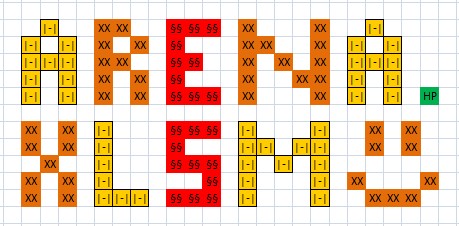
For the RPG fans we have Arena Xlsm. The game includes a storyline with 4 different endings, more than 1000 item combinations, 31 magic spells and over 2000 enemies.
This one is sure to be a time eater.
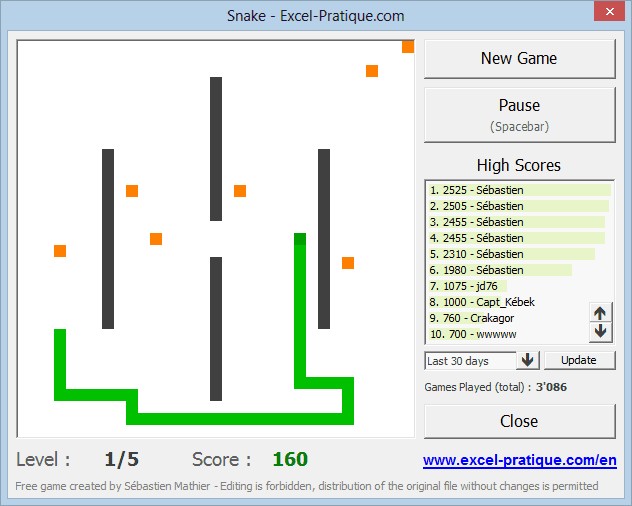
First found on the classic Nokia 3310, Snake took the world by storm. Simple, addictive, and insanely fun. The Excel version includes different levels and a high score table. Nice.
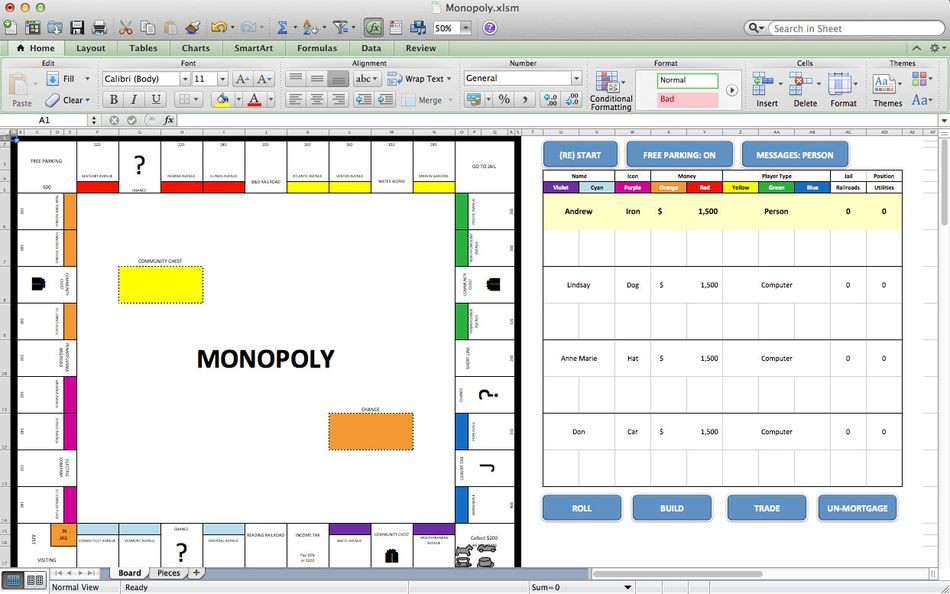
The cause of thousands (if not, millions) of family feuds, Monopoly has been built from the ground up in Excel by Andrew Werner.
The game allows up to 4 players. Or you can compete against computer-controlled players – Ensuring you still have friends at the end of the game.
Have you found any weird and wonderful ways to use Excel?
If so, let us know in the comments and share the fun.