Update Charts Automatically When You Enter New Data
Category: Charts & Graphics | [Item URL]
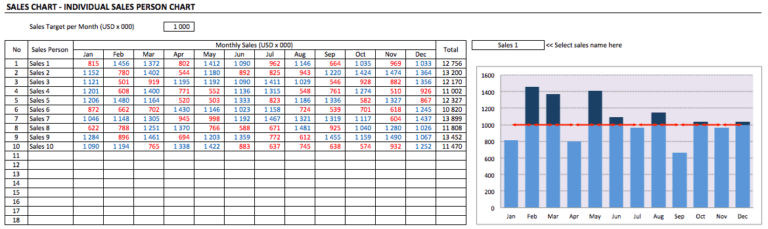
Q. I use an Excel workbook to track and chart daily sales. Since the number of data points changes every day, I have to update the chart manually so it includes the new data. How do I get the chart range to expand automatically?
When you select a chart series in Excel 97 or later, the ranges used by the series are outlined on the worksheet. You could simply drag a corner of the outline to extend the range.
This document describes another approach that uses formulas to define the ranges used in a chart. The steps listed below describe how to create dynamic ranges for the chart shown in figure below.
- Enter the data and create the chart shown in the figure.
- Select Insert, Name, Define to bring up the Define Name dialog box.
- In the 'Names in workbook' field, enter Date. In the 'Refers to' field, enter this formula:
=OFFSET(Sheet1!$A$2,0,0,COUNTA(Sheet1! $A:$A)-1) - Click Add to create the name. Notice that the OFFSET function refers to the first data point (cell A2) and uses the COUNTA function to get the number of data points in the column. Because column A has a heading in row 1, the formula subtracts 1 from the number.
- Now type Sales in 'Names in workbook', and in 'Refers to' enter this formula:
=OFFSET(Sheet1!$B$2,0,0,COUNTA(Sheet1!$B:$B)-1) - Click Add, and then OK to close the dialog box.
- Activate the chart and select the data series. In this example, the (unmodified) formula in the formula bar will read:
=SERIES(Sheet1!$B$1,Sheet1!$A$2:$A$10, Sheet1!$B$2:$B$10,1) - Replace the range references in the SERIES formula with the names you defined in steps 4 and 5. The SERIES formula should read:
=SERIES(,Sheet1!Date,Sheet1!Sales,1)
After performing these steps, you'll find that the chart updates automatically when you add new data to the worksheet.
To use this technique for your own data, make sure that the first argument for the OFFSET function refers to the first data point, and that the argument for COUNTA refers to the entire column of data. Also, if the columns used for the data contain any other entries, COUNTA will return an incorrect value.
Excel Tips
Excel has a long history, and it continues to evolve and change. Consequently, the tips provided here do not necessarily apply to all versions of Excel.
In particular, the user interface of the most recent version, Excel 2007, is vastly different from its predecessors. Therefore, the menu commands listed in older tips, will not correspond to the Excel 2007 user interface.
All Tips
Browse Tips by Category
Search for Tips
Tip Books
Needs tips? Here are two books, with nothing but tips:
Contains more than 200 useful tips and tricks for Excel 2007 | Other Excel 2007 books | Amazon link: John Walkenbach's Favorite Excel 2007 Tips & Tricks
Contains more than 200 useful tips and tricks for Excel | Other Excel 2003 books | Amazon link: John Walkenbach's Favorite Excel Tips & Tricks