
8 Easy Ways To Create A Data Entry Form In Excel
The most critical part of any data collection, exploration, or other algorithm is to have structured data. Not only do you need it for automated systems and algorithms, but it’s also necessary for general understanding when viewing it or when using the data on an everyday basis. From IT and finance to medical, tourism, and countless other industries – they all rely on clean, structured data.
But when we take a look at data in general use, we need to use proper data input and data entry mechanisms. Microsoft Excel is the most widely used data entry tool, and it’s used across a variety of industries in different ways. So, whether you are importing .csv or .xlxs files from Excel to other tools for data processing, or using Excel forms for day-to-day use, we need to know how to create them. This guide shows you the best methods to create data entry forms for general record-keeping use or for establishing a uniform structured data format.
Excel is not only easy to use, but it brings to the table a range of functions and features that make it a sophisticated and powerful tool. From the biggest and most complicated industries to small local chains, everyone needs to keep data records, and Excel forms are the perfect way to store data with high accessibility. Here are the best ways to create data entry forms using Microsoft Excel:
1. Excel’s own data entry feature
Apart from the features that are as good as using a form, Excel also has the option to give you a form. There is not much of a difference between the way we create a table form and the way we make an Excel-based form.
In a table form, you must define your cell range, parameters, and functions, as well as row and column names after and in between the process. However, Excel’s own form feature allows you to define it beforehand, as well as use other features.
You can also use Excel forms for a simpler and more accessible form dialog box, but it is not easily accessible. We need to find it and enable it from the Quick Access Toolbar on the top menu bar. Follow the steps below to use Excel’s form feature.
- First, locate the topmost menu bar above the pinned toolbar. There you will find a small, downwards-pointing arrow or a box showing “Customize Quick Access Toolbar”. We will find our forms feature here by enabling it under the sub-menu, as shown here.

Figure 1: Click on the downward arrow highlighted.
- Go to “More commands” and it will open a dialog box. On the left column, click on the “Choose commands from” drop-down menu. In the list, select the “Commands not in the Ribbon” option.
- This will further show you a menu of commands you can add to the top toolbar, which is usually hidden. In the left column, click on the “Form” option and then click on the “Add” button in the center to add it to the toolbar on the top of your Excel window. Now that we have added it to our topmost menu for easy accessibility, we can begin to use it.
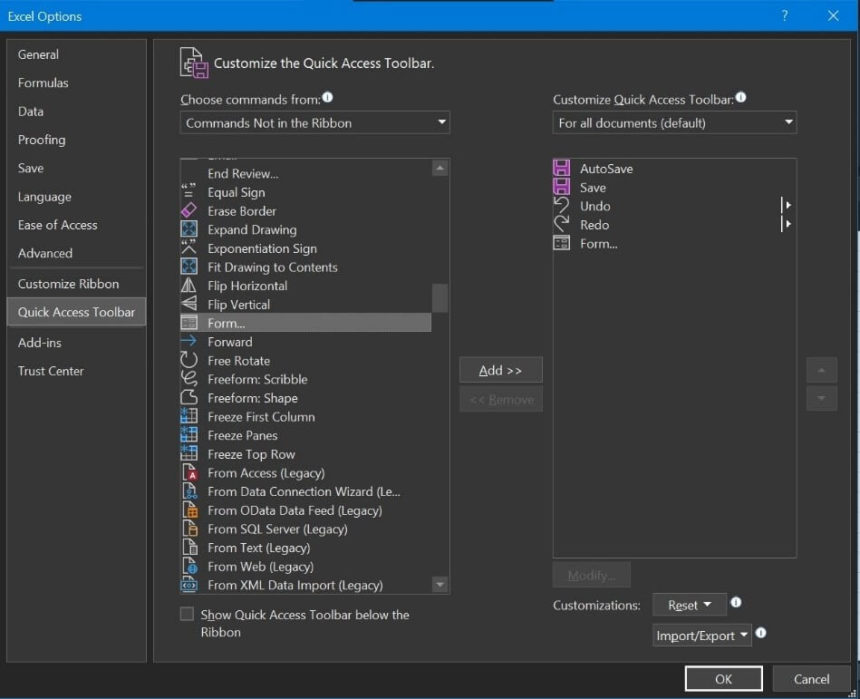
Figure 2: Selecting forms from Excel options.
- Now, to use this feature, all we need to do is use the topmost row as our column header/identifier. Click on the first or any row item data here, as shown, and click on the form icon, now in your topmost menu bar. It will open a form entry dialog box that makes it easy for you to add your data without having to navigate and choose cells individually.
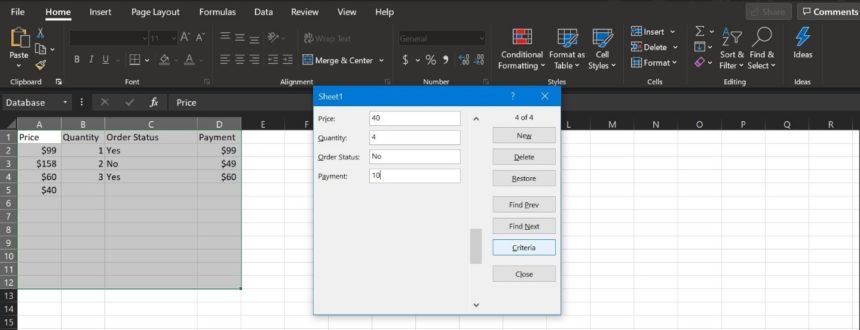
Figure 3: Form entry dialog box.
This form feature now makes it easier to enter data on the go, and Microsoft Excel becomes your perfect data entry form platform. Moreover, all you need to do is press “Enter” to navigate to the next one. You can set criteria for data input, as well as focus on data entry and not locating cells and rows. The best part about this feature is its ease of use, depending upon your data entry fields.
2. Using Excel VBA add-on to create data entry forms
The UserForm data entry feature in Excel’s VBA add-on is the best way to create a more visual data entry form. Not only will this make things easier for you, but it also gives you great visual control over the elements that you need in your form. Moreover, this also gives you more control over calculations and data processing in real time, since you can just enter the code in the VBA panels in Excel. You can view it as a front-end visual box, where Excel covers the backend data processing.
- First, to access the data entry form, we use ALT + F11 to open the VBA panel in the open Excel window. It will show you this dialog box. This will show you your workspace, or project explorer window, where you can see and work on the Excel sheets you want to run your data entry form on.

Figure 4: VBA Workspace.
- Now, open the “Insert” option in the toolbar. In the sub-menu list, click on the “UserForm” option.
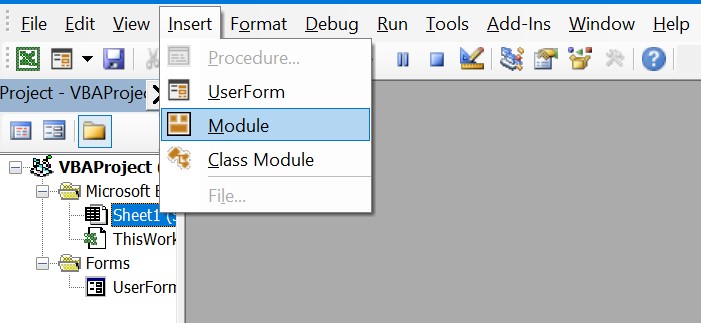
Figure 5: From Insert Menu Select Userform.
- Once you click on the “UserForm” option in the “Insert” menu, you will see the following screen:
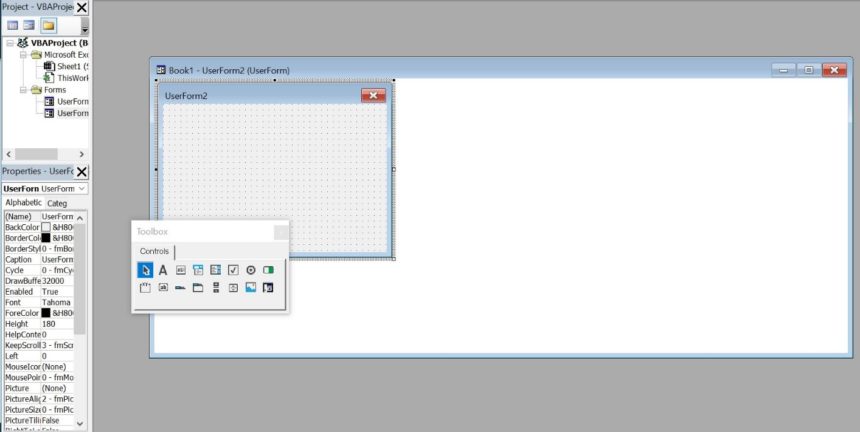
Figure 6: Userform screen.
- In the VBA Excel panel that opens, you are free to visually design the look of your data entry form, and assign functions. You have a cursor, text boxes, lists, and command buttons, among other visual tools, at your disposal. You can design your data entry form by dragging these visual elements from the small “Toolbox” dialog box onto the “UserForm1” or “Userform2” empty box in the background.
- As a sample, we will use a simple text box, label, and command button format. Now that your visual elements are in place, you can edit backend VBA scripts to accept and perform functions on the input data for your form.
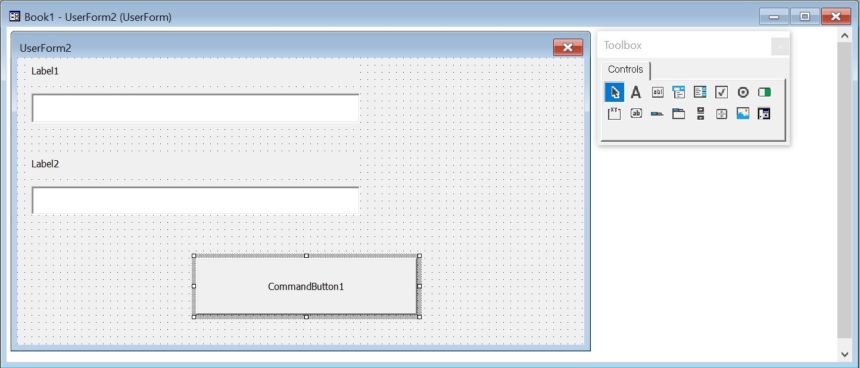
Figure 7: Userform screen.
Once you double-click on any element, it will show the backend VBA scripts for it. We need to tune the Textboxes under “label1” and “label2” to accept our data as required, and the command button to save or perform any processing. This method is more useful for local businesses and industries with high-volume daily record-keeping.
Once you have completed the backend coding, it is easy to allocate functions to all of the visual elements you need. We are only providing a rough layout of the basic steps leading up to this, as creating a form is entirely up to your business or personal needs.
3. Microsoft Excel Macros
Like Excel VBA, there is an Excel macro-enabled option to allow us to create forms for data entry purposes. The trick to this is to save/create your new workbook as an Excel macro-enabled workbook. This will not work in a normal .csv or .xlsx file. It helps you create a visual form in one sheet, and your output in the form of structured data in a second sheet. So, the process involves two sheets – one for the macro visual form, and one for data output as a form of record-keeping in Excel.
- First , rename the first-opened default sheet of your Excel window to “Data form”/”Data entry”/”Form”/, etc. as per your naming requirements. It is best to choose a name that describes the kind of data that you are entering.
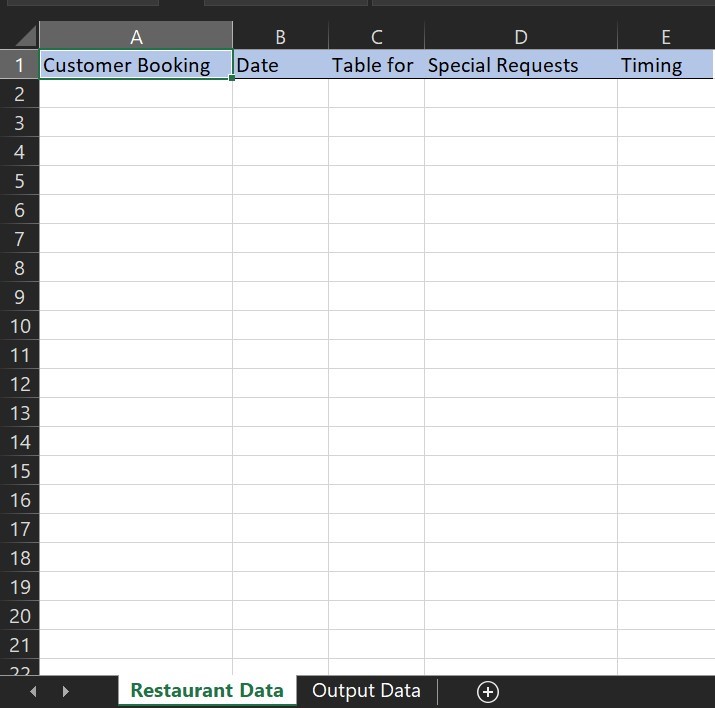
Figure 8: Excel spreadsheet with an updated name
- Now that we have created our table, we can create our Macro VBA for the form data. We need to enable the “Developer” tab to show up on our main menu at the top. Find the “Developer” tab by first right-clicking on the quick access toolbar at the top. It will now show the “Customize Ribbon” option.
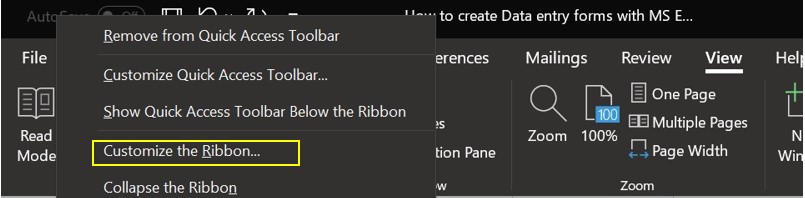
Figure 9: Customize the Ribbon
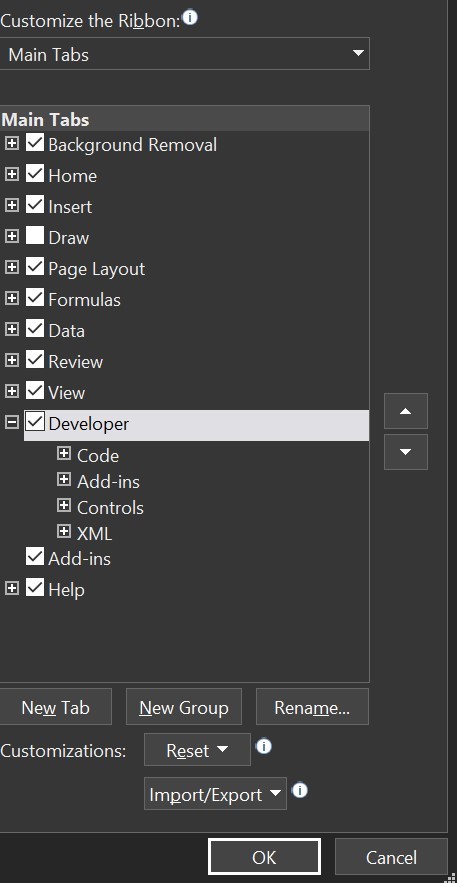
Figure 10: Customize Ribbon Menu
- After checking the “Developer” checkbox in the right column of the opened dialog box, click on “OK” and you should see the developer tab on the topmost toolbar.
- Now we have our table and developer option enabled. Click on the “Insert” toolbar and it will launch a drop-down menu list. In this drop-down list, add elements to the first sheet using the “ActiveX” controls.
- It works in the same way as the previous method, allowing us to create our Macro VBA Table. It will still require you to code and allocate functions to the list of visual elements that you are adding. After completing the coding part as per your requirement, you will have a complete functioning visually working form.
- This VBA Macro form will output our data into the second workbook as per the fields that we defined in the first one in Excel and the VBA Backend.
4. Using Google Sheets
If you want to use forms for surveying or for data collection purposes, rather than for record-keeping, Google sheets are the answer. You can add a variety of visual elements like checkboxes, lists, and pages, among others. When you share the link, you can see the data from the sheet collected in one place, and there are a variety of options to check out, as well. Moreover, you can add elements such as videos, photos, and other visuals among text content. You can check all your form submission responses in the “Responses” section.
Here is how to create a form using Google Sheets:
- Open your Google account by signing in, and access Google Sheets. Alternatively, you can also follow the Google Sheets Form link to directly jump to the page.
- On opening the page, you will see this:
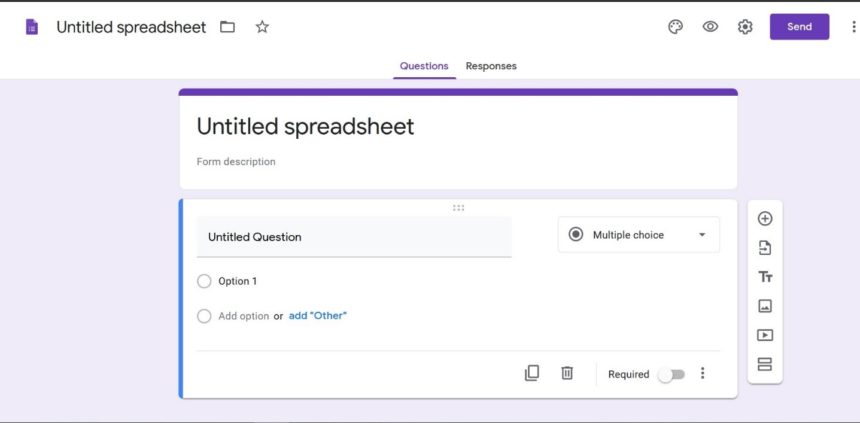
Figure 11: Google Forms
- On the right-hand side of this dialog box, you can see a list of options like “Add Question”, “Import Questions”, “Add Title and Description”, “Add Image”, “Add Video”, and “Add Section from Top to Bottom”. Additionally, you can also see the various command and virtual interaction tools on the page. It is easy to add anything and collect responses using these elements.
- We can only edit the “Questions” column of the Google Forms page. However, you can access and download the data you get from the “Responses” tab.

Figure 12: Google Form Responses
Google Sheets/Forms is the best way to collect data and input survey data. You can use it for interviews, surveys, studies, projects, and even collaborate with your team. Not to mention, it allows you to download all of your data as a structured .csv file for studying and data processing. You can also integrate it with your applications and interview processes. Moreover, Google Forms are not only easy to use and collect data, but they also make it easier for users to see their responses and enjoy Google’s sharing and collaboration benefits.
5. Microsoft Forms
When talking about collaboration and online data collection, it only makes sense to use a cloud-based data entry mechanism. Microsoft Forms are not only easy to use, but also make it simple to collaborate, collect, and export data. The best part is that they are compatible with Microsoft Excel, so it is as good as using a similar online version of Excel. Moreover, like Microsoft Excel, you can jump straight to entering data by creating a form, without any additional complications caused by the online cloud-based mechanism. You can use it to create questionnaires, quizzes, and forms, among other data entry platforms. You can access your Microsoft Forms here.
- After opening the Microsoft Forms main page, it will show you the below screen with an option to either “Create Form”, or “Create Quiz”.
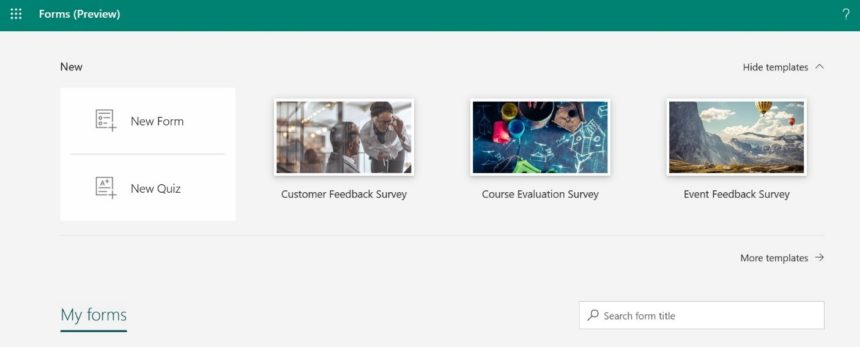
Figure 13: Creating a Microsoft Form
- First, click on “Create Form” and you will see the page below.
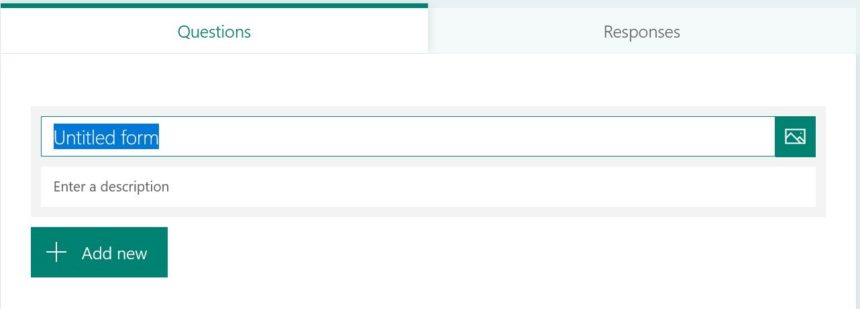
Figure 14: Creating a Microsoft Form
- Now, you can just use it like any other questionnaire/survey form. It will show you label boxes for questions and text boxes for answers. Moreover, you can also set up criteria to enable easy access to and collaboration through these forms.
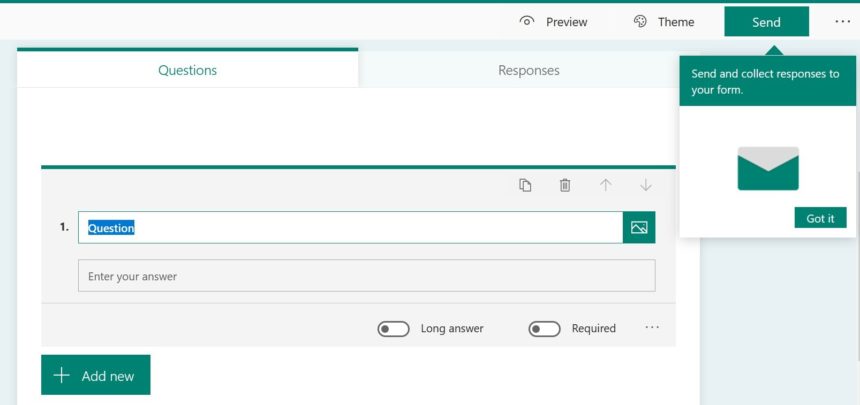
Figure 15: Send and Collect Responses/Collaboration Criteria
- You can also choose to add options such as choices, text, ratings, and dates, among others.

Figure 16: Options for Input
- Microsoft Forms is one of the best ways to collect data, and has a great number of versatile features. It is great for teams and interviews, and you can use it to collaborate and check surveys, create quizzes, and enable other forms of online data entry. Also, you can open the “Responses” tool in Microsoft Excel and check completion times and other statistics:
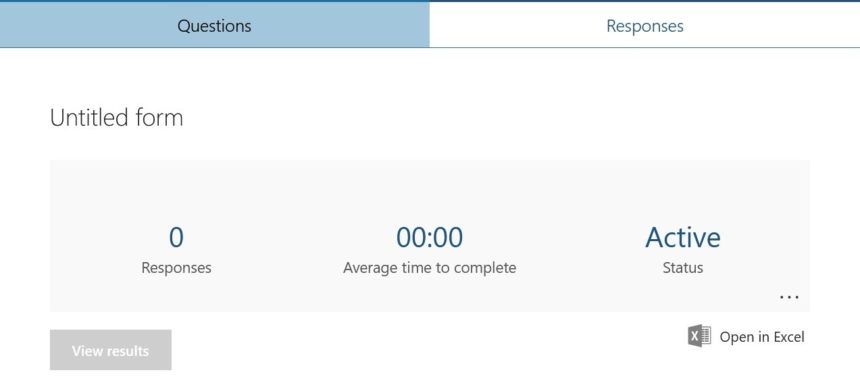
Figure 17: Form and Responses
6. Microsoft Power Apps
Microsoft Power Apps is a great visual tool to create attractive and powerful data entry forms. The best part is that it is compatible with a variety of tools like Excel, SQL Server, and SharePoint, among others, using them as data input sources. So, if you have some data from any of these tools and want to create a form for easy accessibility and usage, Microsoft Power Apps can help.
- After you open the Microsoft Power apps link and sign in using your work or university ID, you can see the page divided into two. In the left-hand side menu, you will see the “+Create” option. Click on it and it will show you the data options that you want to get started with.
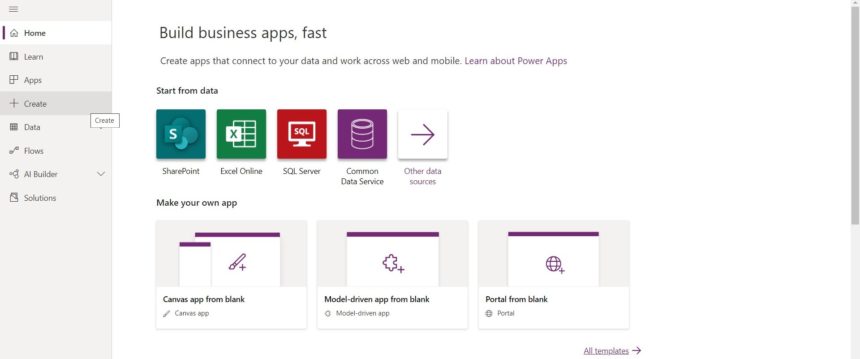
Figure 18: Microsoft Power Apps
- Once you select Microsoft Excel/Excel Online, it will show you a prompt to enter the connection service details for the account or storage where the Excel sheet is stored.
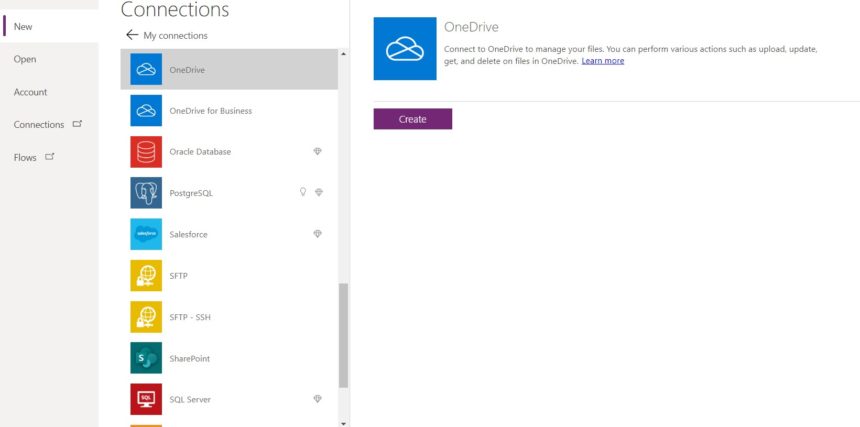
Figure 19: Connections in Power apps
- Login and select the workbook or sheet that you want to use.
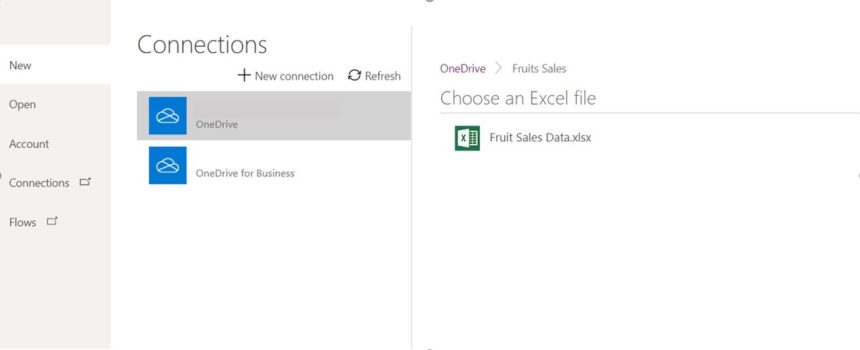
Figure 20: Connections in Power Apps
- Make sure your data in the Excel sheet is stored as a table. Now, select the table you stored your data in and click “Connect”.

Figure 21: Selecting a table
- Now, a blank canvas opens for us to create the form on.
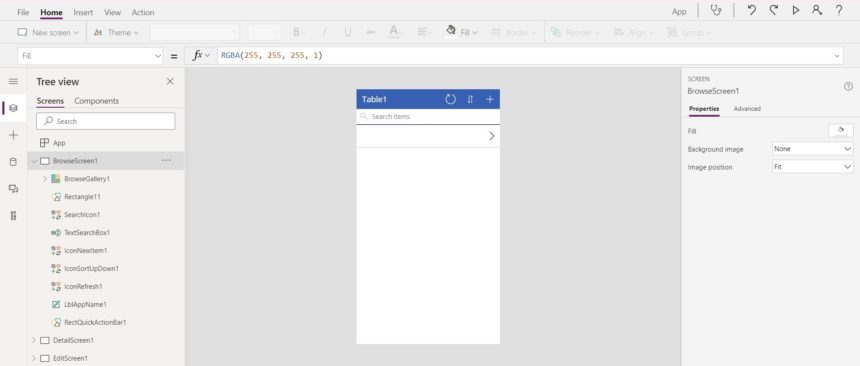
Figure 22: Blank a canvas for form
- Click on the “Insert” button, select “Forms” in the tabular menu, and from the dropdown select “Edit”.
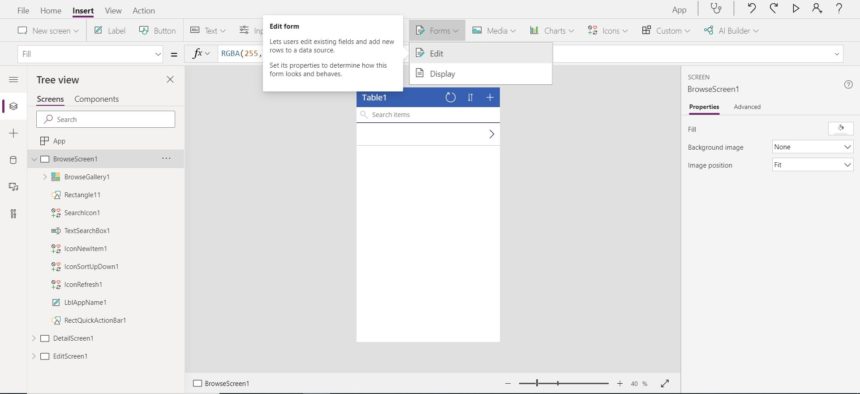
Figure 23: Selecting “Edit” from drop-down
- On the edit menu towards the right side of the screen, select the data source which is the table you created.
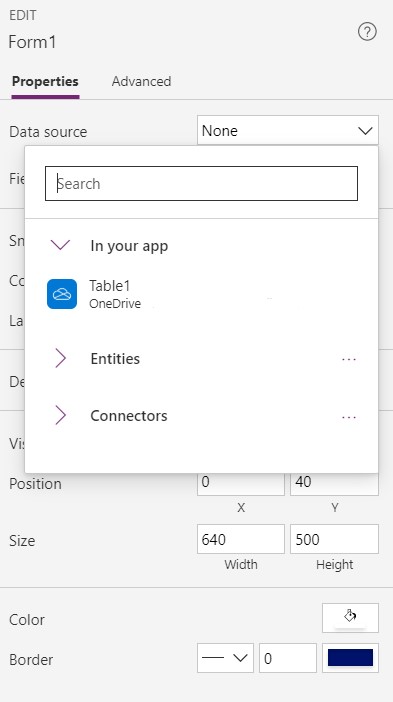
Figure 24: Selecting Data Source
- On the same edit menu, click on the “Fields” option and select the fields you want to add to the form, and then click the “Add” button.
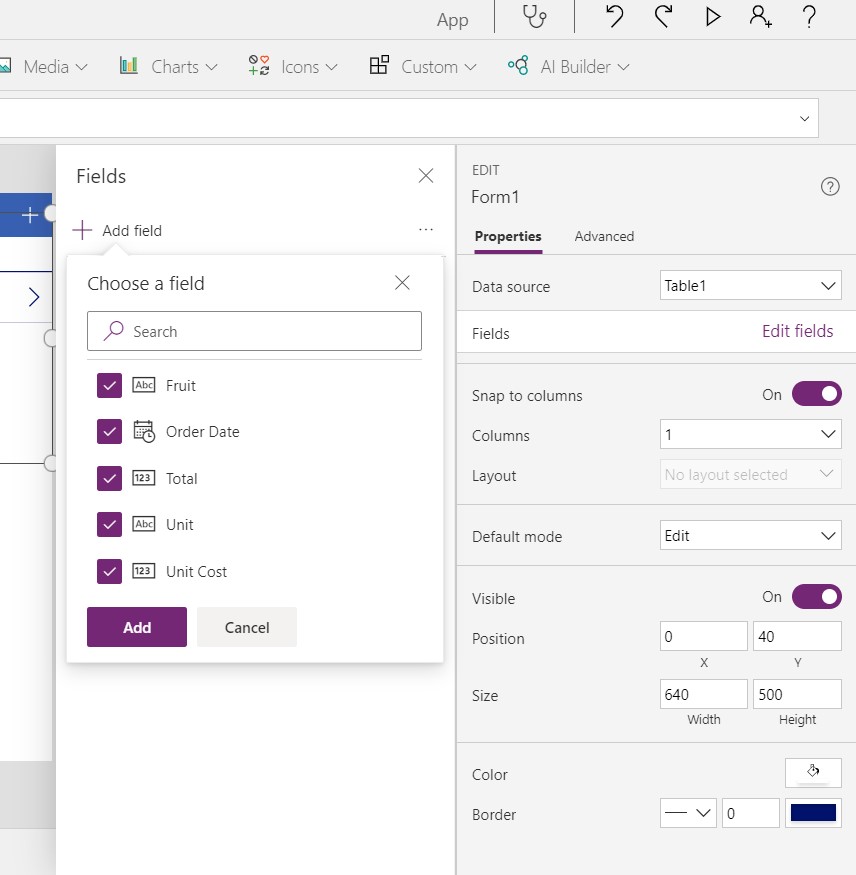
Figure 25: Adding fields
- Next, you can add buttons, define actions and screens to make your form more interesting, and even connect to Power Automate to trigger an email when a button is clicked.
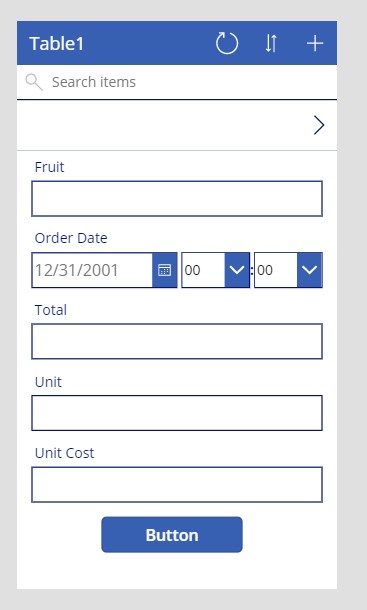
Figure 26: Form with fields
7. Power Automate
Power Automate is one of the tougher options to use to create a form that is compatible and works with Microsoft Excel. Moreover, Power Automate is more of an inter-app automation tool than a strict data entry tool. So how does Power Automate create forms for data entry purposes? We can create a trigger function to set off a link to add data to an Excel table. For this, you need to already have an existing table in the connected online services, with the field names set up. You can access Power Automate here.
- For the first , you first need to create a sample Excel data sheet with your column headers, and define data types or other criteria. After creating the sample data to import to, we move on, creating a “Flow” in the Microsoft Power Apps main page.
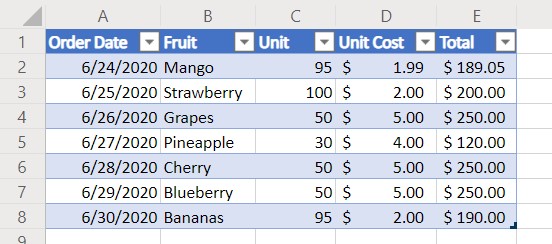
Figure 27: Excel Table
- Click on the “Create” option on the dialog box on the main page.
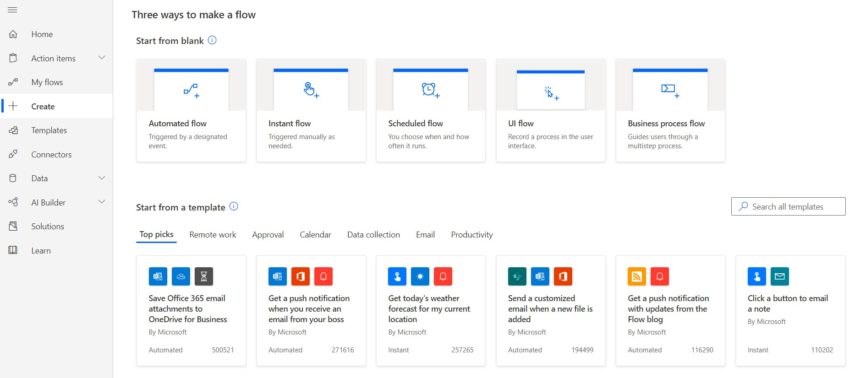
Figure 28: Creating a flow
- Since we are setting up an automated trigger, we need to create events that trigger with the help of Power Automate to write data in your selected Excel files/workbooks online.
- Select the “Instant Flow” option and give it a name as per your project/function description. A new dialog box opens to show a new window with the available automation that you can use.
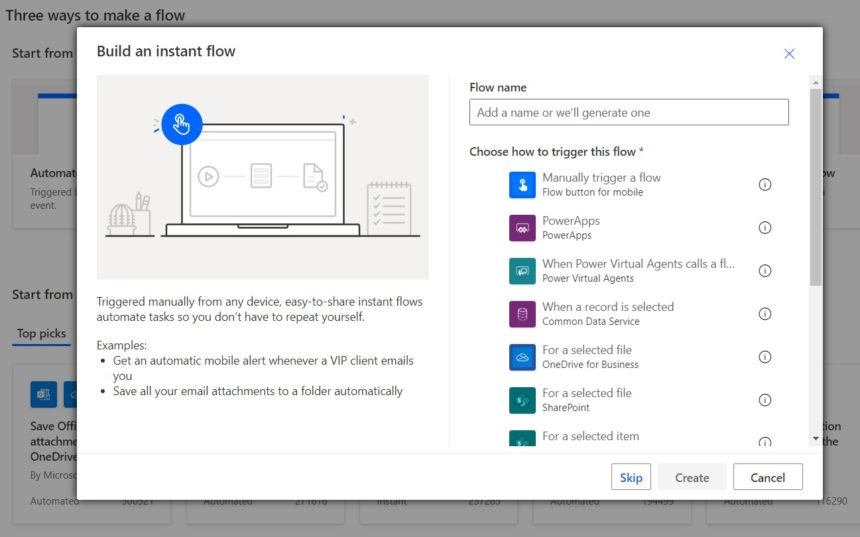
Figure 29: Build an Instant Flow
- Next, select the “Manually trigger a flow” option. This is the event we are creating a trigger for and which will set up our field populating function in the Power Automate app.
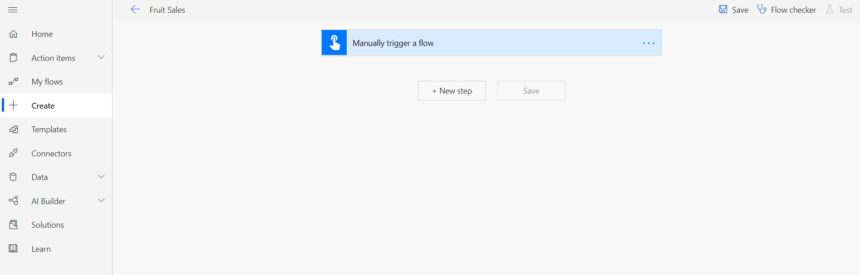
Figure 30: Selecting ‘Manually trigger a flow’
- You will see a list of text boxes and fields to enter data in the dialog box that opens. You can see several fields. Select the “Add an input option” option that adds more fields and text boxes, among other items, as per your requirement. Through this option, you can choose between text, questions, a file, and other options.
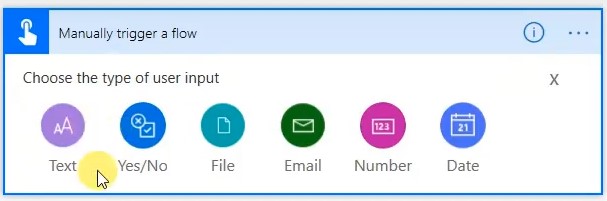
Figure 31: Selecting the type of user input
Once all this has been set up all that we need to do is create the automation to trigger a data entry form writing function.
- It is better to give this automation form input a descriptive name to help you check later what kind of data you will be writing in. For example, a fruit seller would be writing in order details such as Order Date, Fruit, Units, Cost, and other items in the automation.
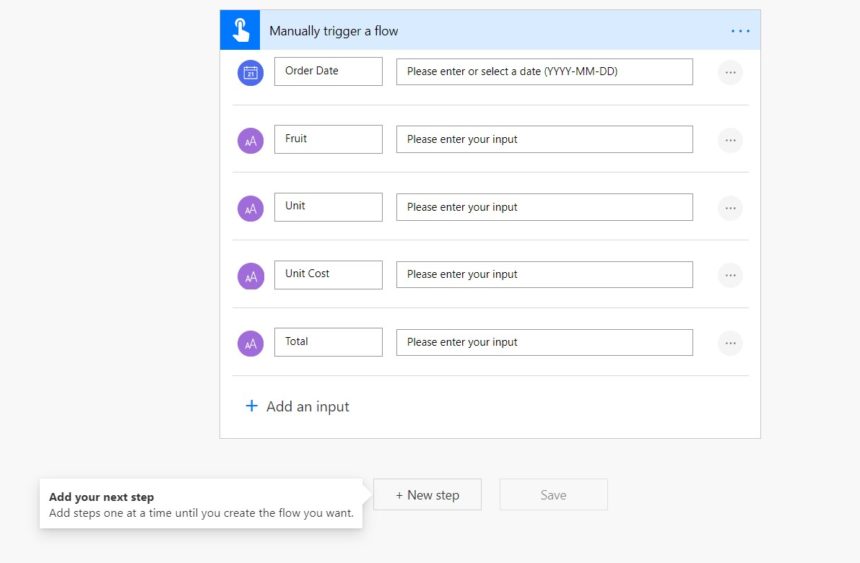
Figure 32: Adding input fields
- Once we have set up our automation form as mentioned in the steps above, with all the fields and labels working correctly, we can move on to the next step. Click on the “New Step” option at the bottom left of the dialog box. Make sure that you are defining the data entry fields according to the input that you want in your Excel online table defined earlier.
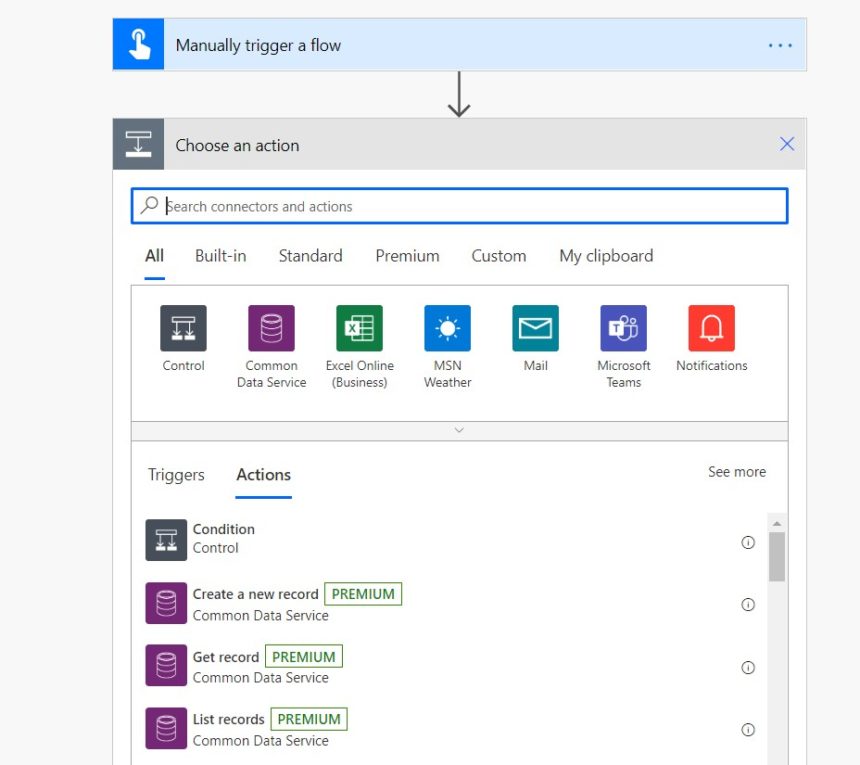
Figure 33: Actions Menu
- The next dialog box to open will show you a list of commands available to automate the data that you entered in the fields previously. In the “Actions” menu, select the “Add a row into a table”. This will write all our previously entered data into the tables/workbooks we have linked. It will work only with the Excel connector feature. Otherwise, it would send it to some other application, or result in an error. You can also use OneDrive connectors for this purpose, since Microsoft would ultimately link it to your online business Excel platform. After linking your OneDrive, it will ask you for your location in which the predefined table is present.
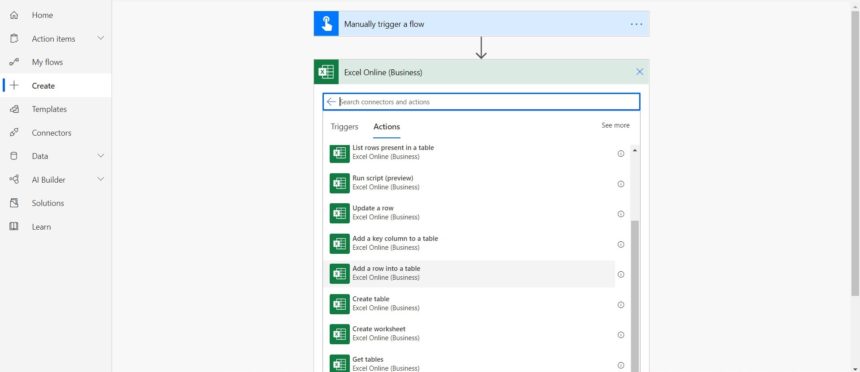
Figure 34: Choose an action
- In the “Add Row into a Table” dialog box, after locating your Excel workbook, it will ask you for a data type definition for the data fields present in the table. Use appropriate identifiers for your defined column names. For example, a column named “Fruit” should be defined as “Fruit” from the options available. After this step, we have our manual trigger set up properly, with its function being to write into your Excel data fields whenever you trigger it.
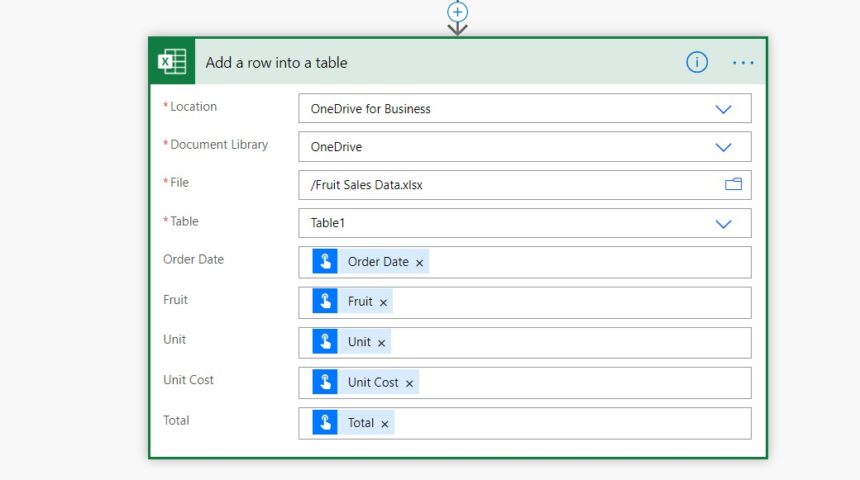
Figure 35: Add a row into the table
- Now, we must go back to the main screen in the Power Automate app, and we will see a “My Flows” option above the “Create” option we previously used. This option shows a list of the automation triggers that we have created. Since this would most likely be your first automation, click on the name you assigned to the trigger dialog box with the fields for data input.
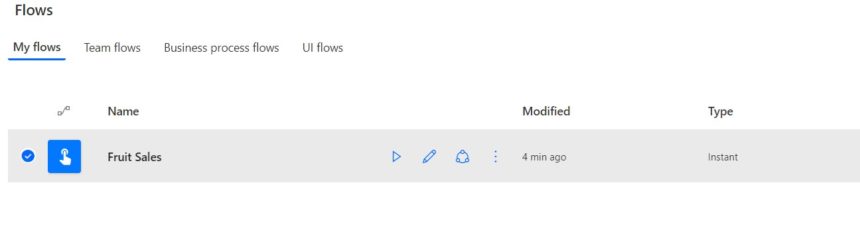
Figure 36: The created flow
- Click on the “Run” option and it will show a data entry prompt. You can now use this as your data entry form writing all of the data into the appropriate fields as per your requirement. After you have filled all the fields, use the “Run Flow” option to populate the empty cells in your Excel online table. You will have to run it every time to save data into the linked Excel online spreadsheet. The prompt box acts as your data entry form, and Excel collects your data properly in cells as per your definition.
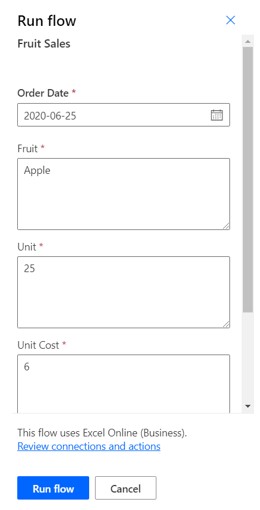
Figure 37: The Run Flow Popup
- You can also output this data as PDF, CSV, among other online options available.
8. Microsoft Excel Tables
Microsoft Excel tables are the most basic and easiest way to create forms. It requires fewer steps, is concise, and structures your data, as well as gives it a clean look. Moreover, once you have created your own table for data entry, you can also use Microsoft Excel functions, arrange your data, as well as carry out other data manipulation and rearrangement functions.
- Select a grid of cells, say 10×10 as shown below. To make this selection of cells into a form, we use Microsoft Excel’s table function.
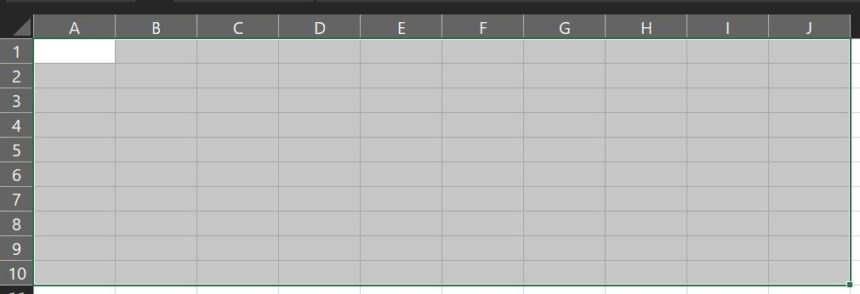
Figure 38: Selecting Cells
- On the top pinned menu of your Microsoft Excel window, click on “Insert” to access the Table feature. Alternatively, you can also use CTRL + T. Check the image below:
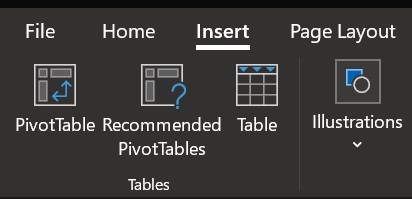
Figure 39: Insert Menu
- Now, click on the “Table” option after clicking on the “Insert” tab. It will show a dialog box, and you can check if you want customized headers for your form or if you want it to be all input data. Click on the “My table has headers” feature to allow a separate field for column names.
- Your table/form is now ready, and you can customize it further and use manipulation and rearrangement functions as needed.
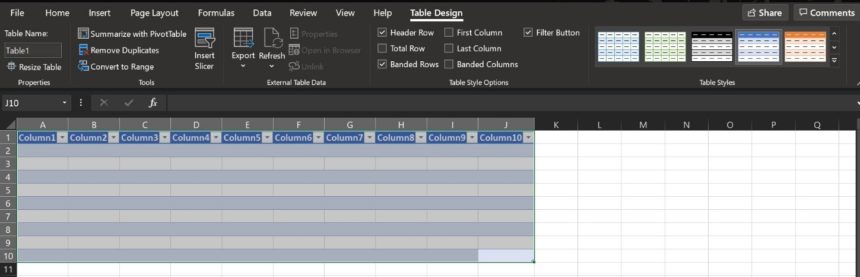
Figure 40: Form
Your Excel table/data entry form is now ready for use. You can enter data on the go, as well as add values, use functions on your columns, and use other features for calculations and data sorting. Moreover, you can export your data in various Excel formats and use it anywhere for secure record-keeping.
Conclusion
There are many ways to work in Excel and write data in compatible offline and online versions. Moreover, the variety of options brings just as many capabilities as complex solutions like the VBA enabled forms. If you are a small to medium-sized business that only needs to keep records for company purposes, you can go for the simple methods and some form of simple VBA, too. You can access tutorials on how to code VBA Backend through this tutorial course.
Also, the easiest way to use Excel forms is to make use of its own hidden native Forms feature, or Excel tables. You can still create and set up formulas for calculation, but it is easier to use VBA for backend processing features. As this would change according to your requirements, it is best to use your own visual elements as well as backend coding for Excel VBA, with or without macros. All these tools can also help you in data science and business analytics with the right data output.
I would be interested in purchasing the source code for the J-Walk Enhance Data Form. Is the cost still $15.00? How do I initiate and pay for the purchase?
How do I get help on here with my form?
Thx, Dan
How can I download the J-Walk Enhance Data form files?